Granting User Permissions
Overview
With AddressTools installed in your org, you need to grant users the correct permissions before they can use the solution. AddressTools uses Salesforce Permission Sets to control access to its features, custom objects, and fields.
This guide explains which Permission Sets to assign and how they work together.
Note
The Permission Sets described here ship with AddressTools v10.2 and later. If your org is on an earlier version, upgrade to the latest version from AgentExchange (formerly AppExchange) before assigning permissions.
About Permission Sets
AddressTools ships with two core Permission Sets, a set of granular address field Permission Sets, and a Permission Set for Agentforce agent users. All of them appear in Setup > Permission Sets with labels beginning AddressTools.
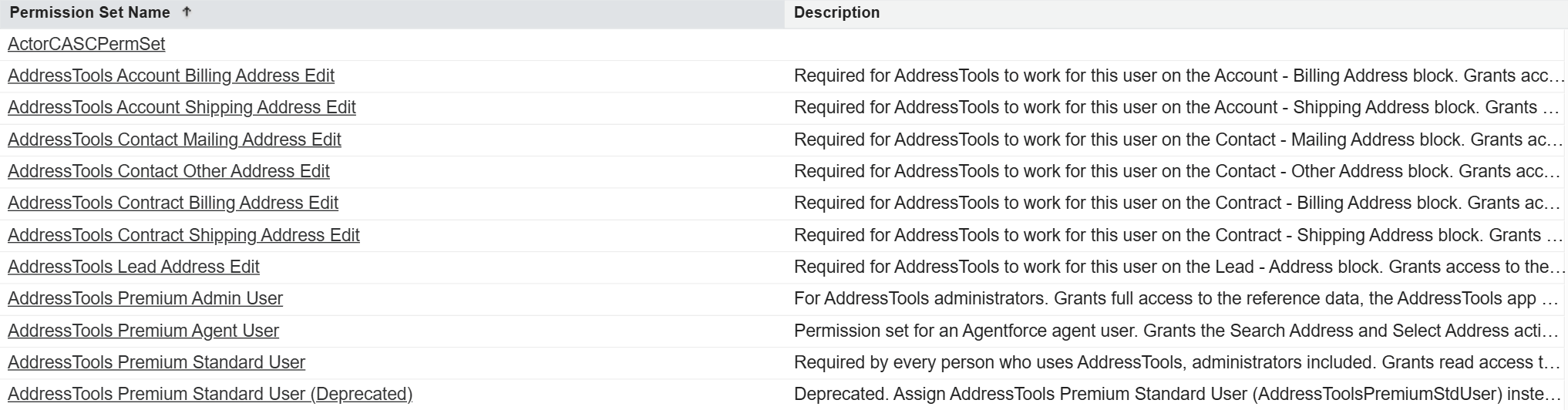
Core Permission Sets
| Permission Set | API Name | Purpose |
|---|---|---|
| AddressTools Premium Admin User | AddressToolsPremiumAdminUser |
For administrators who configure and manage AddressTools |
| AddressTools Premium Standard User | AddressToolsPremiumStdUser |
For everyone who uses AddressTools, administrators included |
AddressTools Premium Admin User grants full create, read, edit and delete access to the AddressTools reference data objects; access to the AddressTools app and its tabs, including AddressTools Administration and Batch Address Verification; and edit access to the Exempt Validation Errors and QuickComplete Country fields on the User object.
AddressTools Premium Standard User grants read-only access to the AddressTools reference data objects, and access to the Apex classes and Visualforce pages that address verification and the AddressTools components run on. Every person who uses AddressTools needs it, administrators included.
Note
The Permission Set labelled AddressTools Premium Standard User (Deprecated) (AddressToolsPremiumStandardUser) is a legacy Permission Set from an earlier version. Use AddressTools Premium Standard User (AddressToolsPremiumStdUser) instead.
Address Field Edit Permission Sets
AddressTools adds custom fields (Address Status and County) to standard objects. Each address block has a Permission Set that a user needs for AddressTools to work on that address. Assign the Permission Sets for the address blocks each user works with. The table shows the fields each set currently grants edit access to.
| Permission Set | API Name | Object | Fields Granted |
|---|---|---|---|
| AddressTools Account Billing Address Edit | AddressTools_Account_BillingAddress_Edit |
Account | Billing Address Status, Billing County |
| AddressTools Account Shipping Address Edit | AddressTools_Account_ShippingAddress_Edit |
Account | Shipping Address Status, Shipping County |
| AddressTools Contact Mailing Address Edit | AddressTools_Contact_MailingAddress_Edit |
Contact | Mailing Address Status, Mailing County |
| AddressTools Contact Other Address Edit | AddressTools_Contact_OtherAddress_Edit |
Contact | Other Address Status, Other County |
| AddressTools Contract Billing Address Edit | AddressTools_Contract_BillingAddress_Edit |
Contract | Billing Address Status, Billing County |
| AddressTools Contract Shipping Address Edit | AddressTools_Contract_ShippingAddress_Edit |
Contract | Shipping Address Status, Shipping County |
| AddressTools Lead Address Edit | AddressTools_Lead_Address_Edit |
Lead | Address Status, County |
Agentforce Agent User Permission Set
AddressTools Premium Agent User (AddressToolsPremiumAgentUser) is for the user an Agentforce agent runs as. It grants access to the AddressTools address actions and nothing else, so it can be assigned to a user on the Einstein Agent license. Assign it only if you use the address actions in an agent; see Use the Address Actions in an Agentforce Agent.
Recommended Assignments
| User Role | Permission Sets to Assign |
|---|---|
| Administrator | AddressTools Premium Admin User + AddressTools Premium Standard User + the address field Permission Sets for the address blocks they use |
| Standard user | AddressTools Premium Standard User + the address field Permission Sets for the address blocks they use |
| Integration / API user | AddressTools Premium Standard User + the address field Permission Sets for the address blocks they use |
| Agentforce agent user | AddressTools Premium Agent User |
Note
Guest users are not supported by the packaged Permission Sets. If you require guest user access, create a custom Permission Set granting read access to the AddressTools custom objects and to the Apex classes prefixed with pw_ccpro__.
Step 1: Create a Permission Set Group
We recommend deploying AddressTools permissions using Permission Set Groups. This allows you to bundle a core Permission Set with the relevant address field edit sets into a single assignable group per user role, simplifying ongoing user management.
- Navigate to Setup > Permission Set Groups.
- Click New Permission Set Group.
- Enter a label that describes the role, for example
AddressTools Standard Users. - Add the Permission Sets for that role, using the Recommended Assignments above.
- Click Save.
This approach ensures consistent permissions across your user base and makes it straightforward to add or remove access as your requirements change.
Step 2: Assign the Group to Users
- Navigate to Setup > Permission Set Groups.
- Click the Permission Set Group name.
- Click Manage Assignments, then Add Assignment.
- Select the users and click Assign.

Assigning Individual Permission Sets
If you prefer to assign Permission Sets individually rather than as a group:
- Navigate to Setup > Permission Sets.
- Click the Permission Set you want to assign.
- Click Manage Assignments, then Add Assignment.
- Select the users and click Assign.
Repeat for each Permission Set the user needs.
